Getting started
Step 1
Start a shift
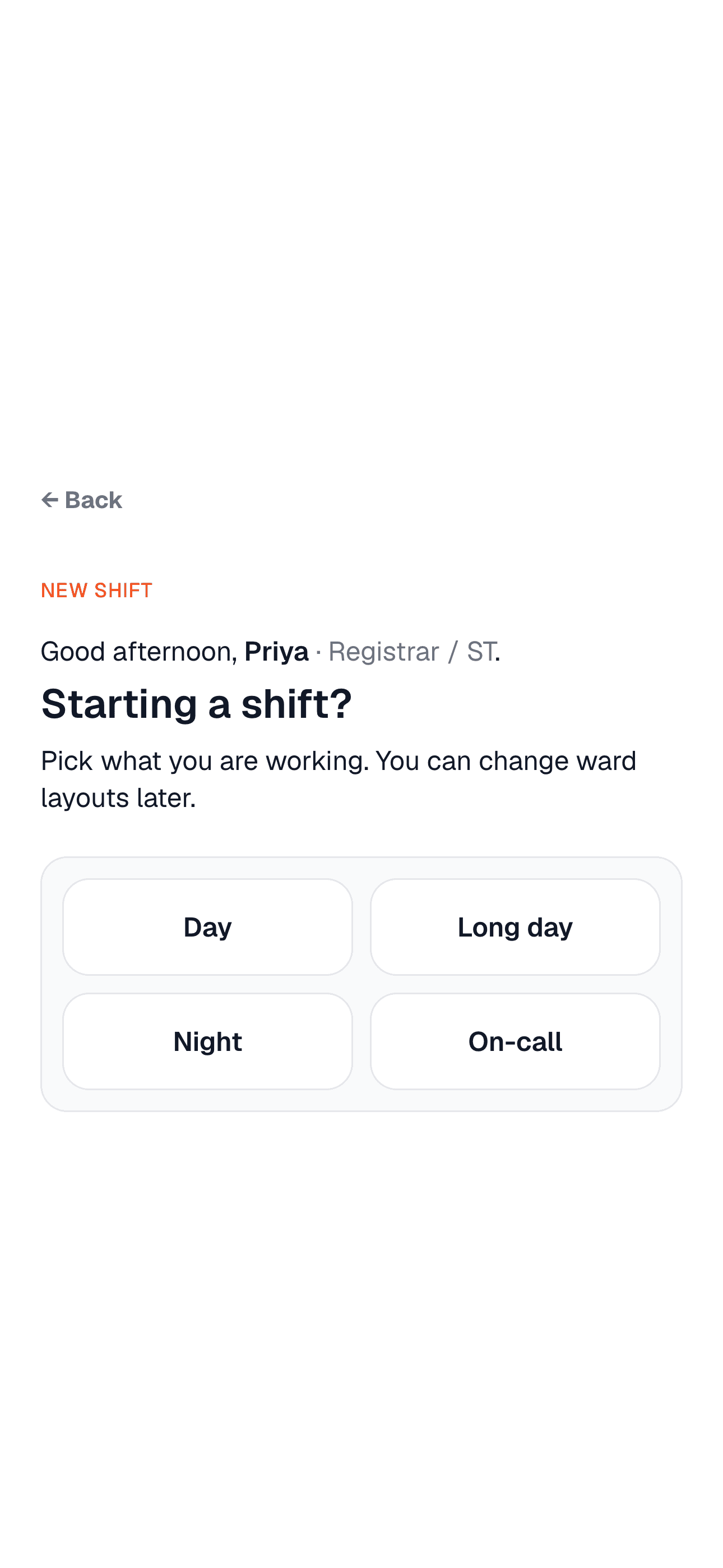
After entering your name and role, tap Start shift and pick Day, Long day, Night, or On-call. You can set up ward layouts now or later.
Step 2
Set up your wards (optional)
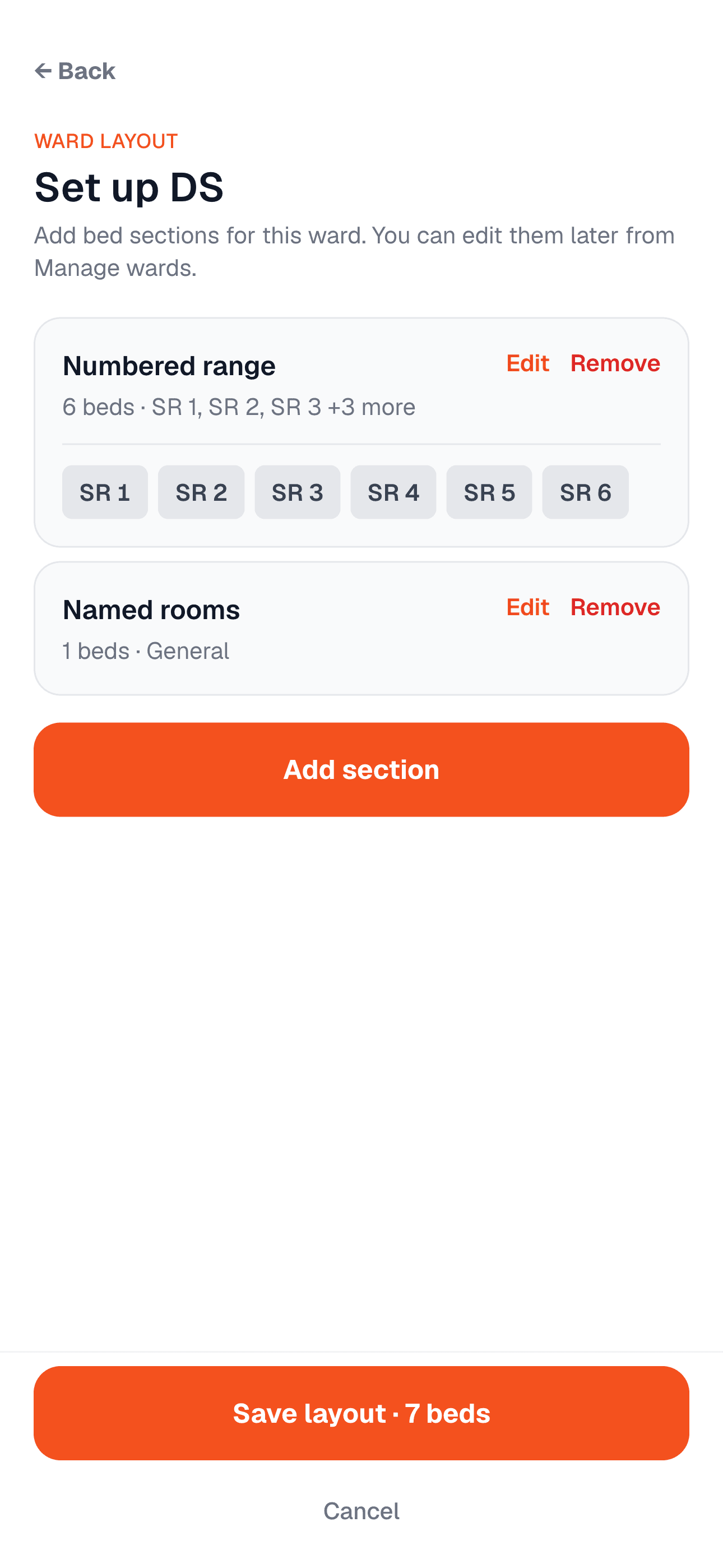
Add bays, beds, and side rooms for each ward. Layouts make adding jobs faster and give you a bed board. You can also scan a colleague's ward layout instead of building it from scratch.
Step 3
Add jobs
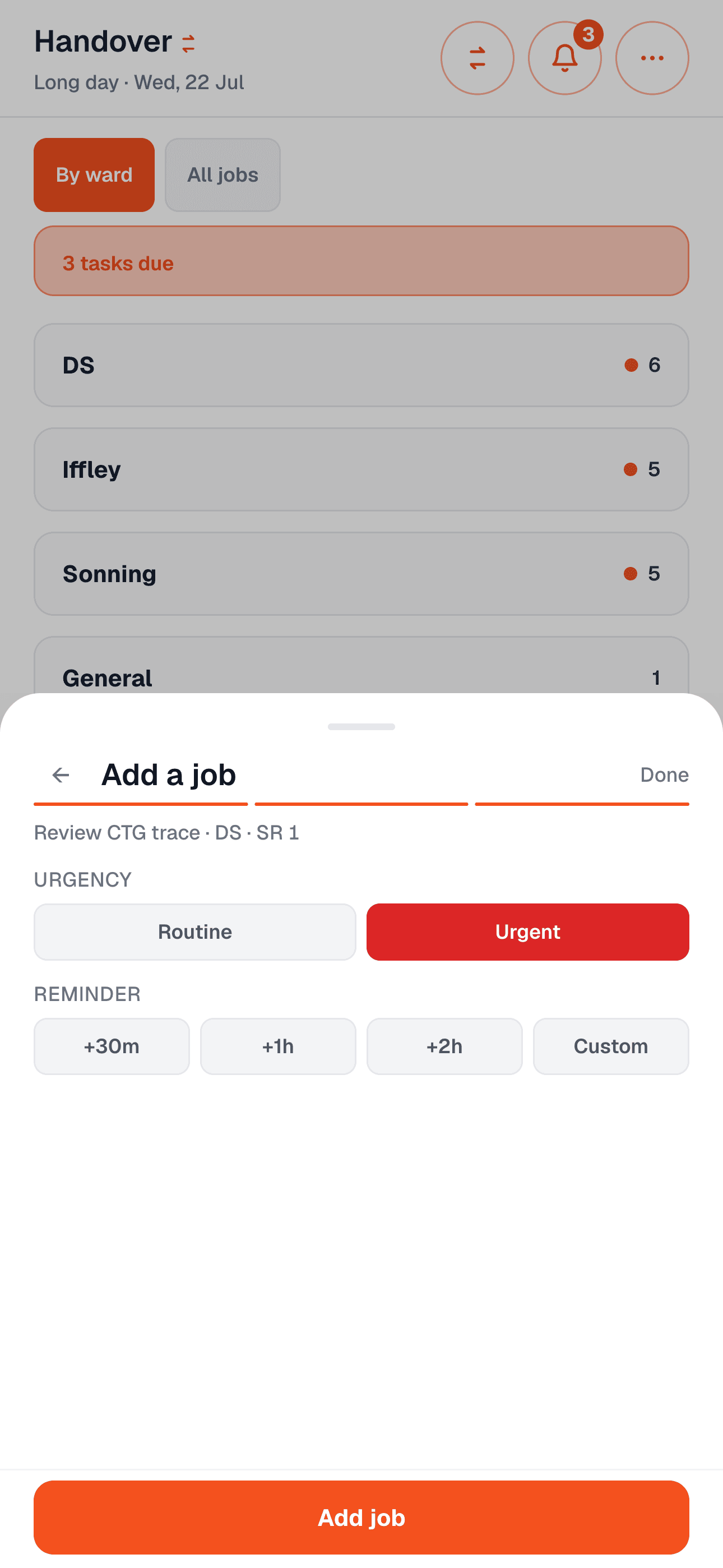
Tap +, enter the ward, bed, and task. Mark routine or urgent, optionally set a reminder (+30m, +1h, +2h, or custom), then tap Add job.
Step 4
Work the list
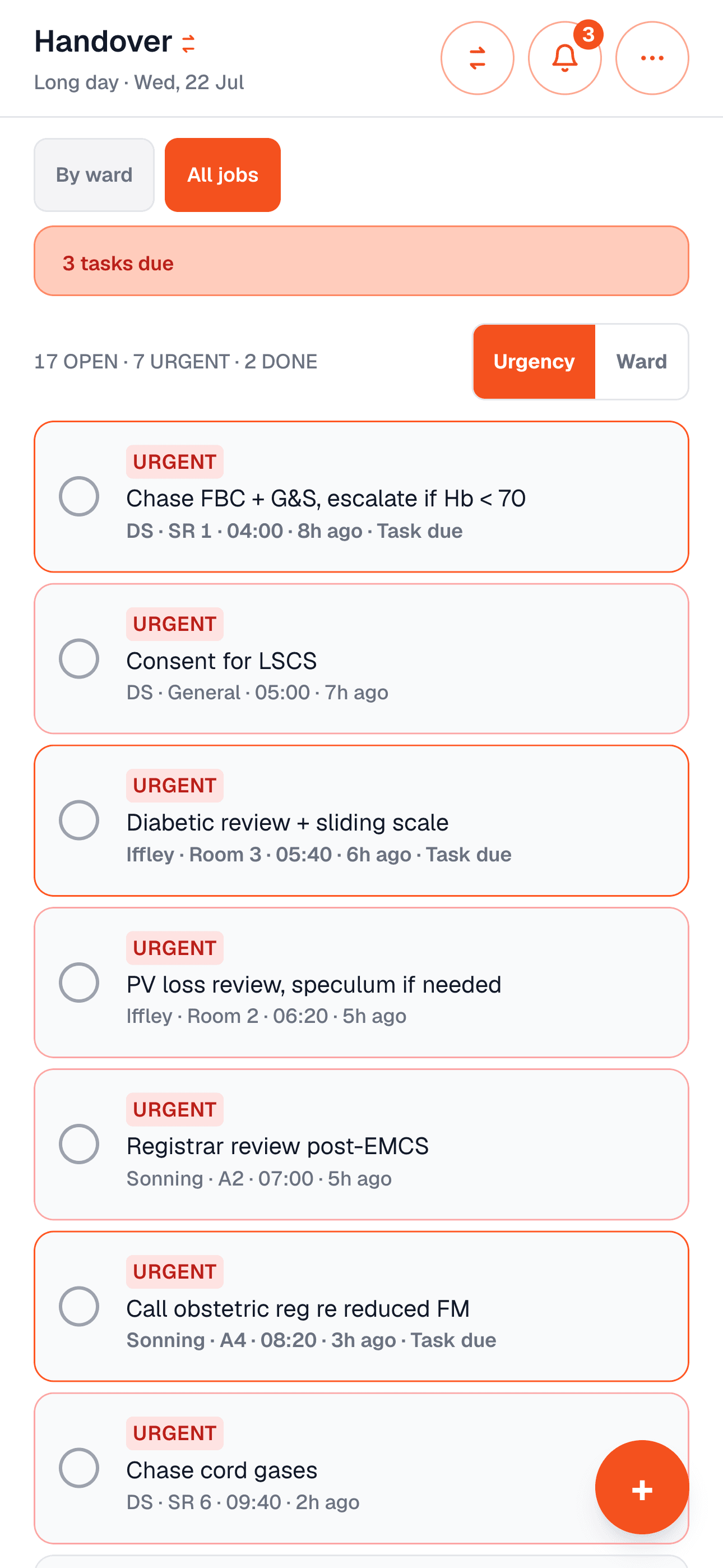
Switch between By ward (bed board) and All jobs. Tap a job to edit, swipe to delete, and use the bell for due reminders.
Step 5
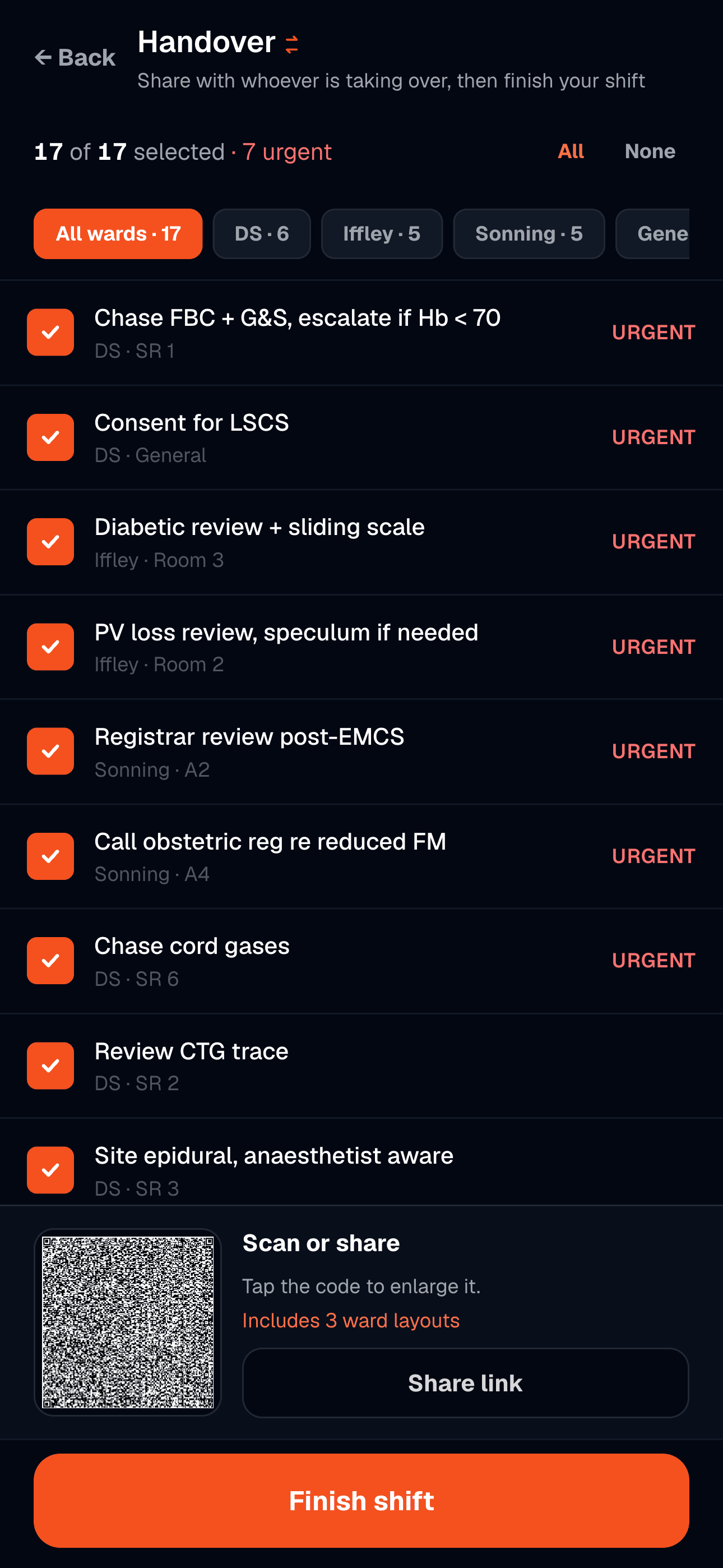
Hand over
Mid-shift or at the end: open Exchange → Hand over, or End shift → Hand over. Select which jobs to pass on, filter by ward if needed, then show the QR or share the link. Ward layouts can travel with the jobs.
Step 6
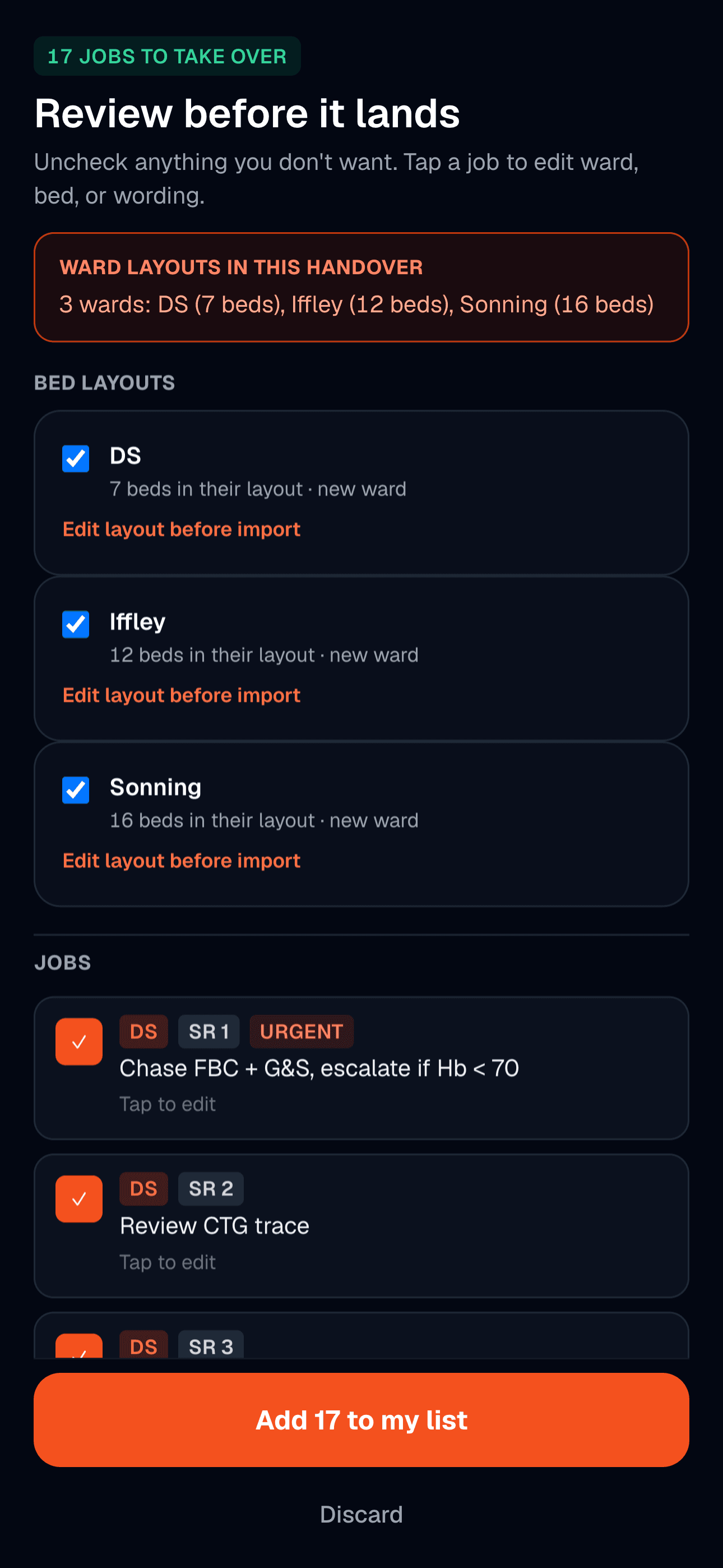
Take over
Exchange → Take over. Scan the QR or paste the link. Review jobs and layouts, uncheck anything you don't want, edit before merge, then add them to your list.
Features
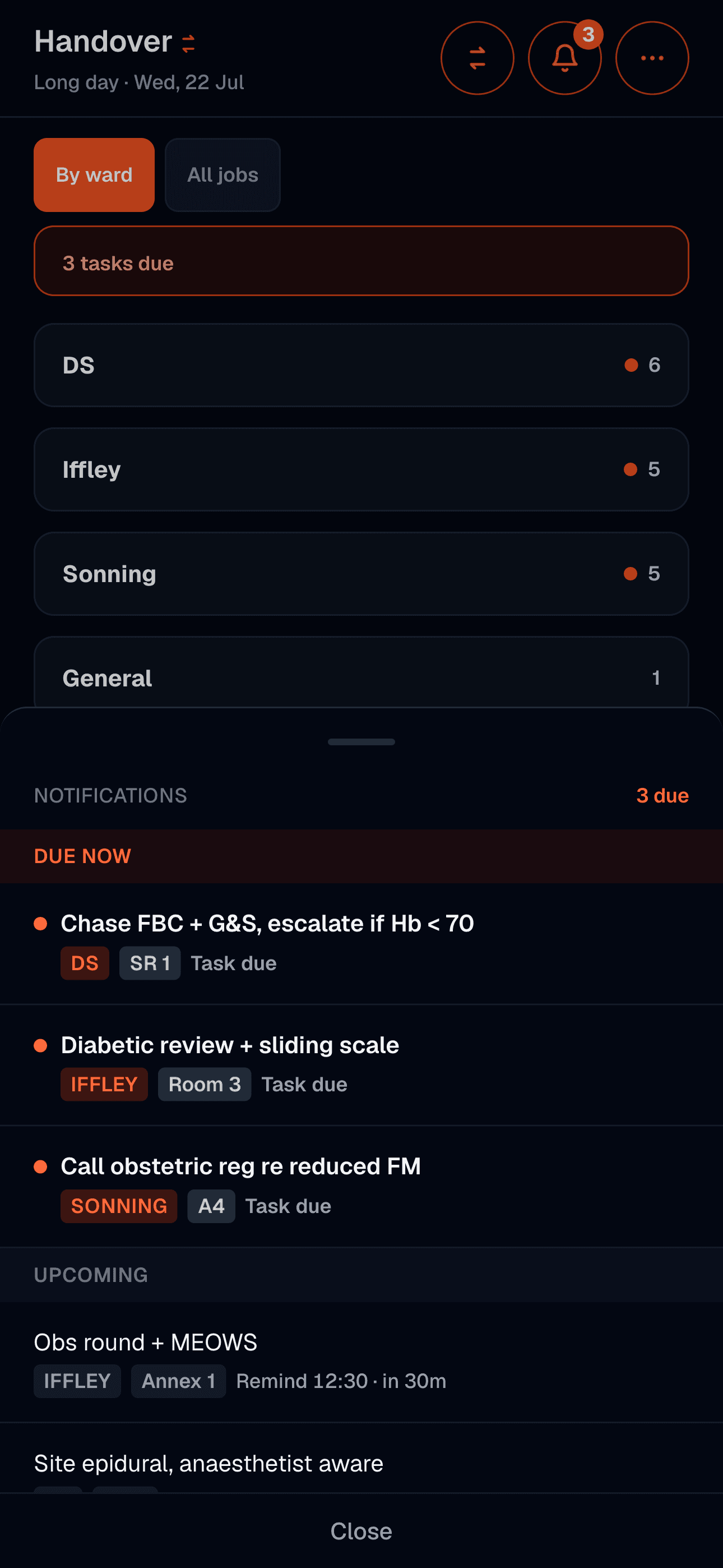
Reminders
Set reminders on jobs with +30m / +1h / +2h or a custom time. Due jobs show in the banner and the notification centre (bell). On iOS, reminders can also fire as native notifications if you allow them.
Ward layouts
Menu (···) → Manage wards to configure bays, beds, and side rooms. Layouts make capture faster, power the bed board, and can be shared alone via QR/link so a colleague can import your map without taking over a shift.
Private bed notes
On a bed page, add private notes under the title. These stay on your device only, never go in the QR, and clear when you end the shift.
Dark mode
Menu (···) → toggle dark mode. Your preference is saved locally.
Data and privacy
Everything stays on your device unless you hand over jobs. No account, no server, no cloud, no tracking.
When you hand over, ward/bed/task text travels in the QR or link (not encrypted). Bed notes, reminders, done state, and your profile are never shared.
See the full privacy policy.
Troubleshooting
The QR scanner won't open
Handover needs camera permission to scan QR codes. Go to your device Settings → Handover → Camera, and enable it. If you've denied permission, you can still paste handover links manually.
I'm not receiving reminder notifications
Go to your device Settings → Handover → Notifications, and enable them. Reminders still appear in the in-app notification centre (bell) even if OS notifications are off.
The app isn't updating
Handover is a PWA with auto-update enabled. After an update is deployed, close and reopen the app twice to see the new version.
I want to clear all data and start fresh
Go to Menu (···) → About → scroll down and tap "Clear all data". This deletes your profile, shifts, jobs, and ward layouts. This cannot be undone.
Safe use guidance
Handover is a task list, not a patient record system or clinical decision support tool.
- Use non-identifying shorthand only. Do not include patient names, dates of birth, or hospital numbers.
- Handover supports, and does not replace, verbal handover and clinical responsibility.
- QR codes and links are not encrypted. Show the QR in person rather than sharing the link via messaging apps.
Handover · Version 1.0.0
Dr. Khalid Shamiyah · O&G Trainee, Oxford University Hospitals